> ## Documentation Index
> Fetch the complete documentation index at: https://yuno-3979e326-docs-agent-readable-descriptions.mintlify.site/llms.txt
> Use this file to discover all available pages before exploring further.
# Click to Pay
> Offer the EMVCo Click to Pay wallet for faster, tokenized card checkouts.
Click to Pay is an online payment solution designed to streamline and secure online transactions. It's based on the EMVCo secure payment standard, a global consortium comprising major card companies like Visa, MasterCard, American Express, and Discover.
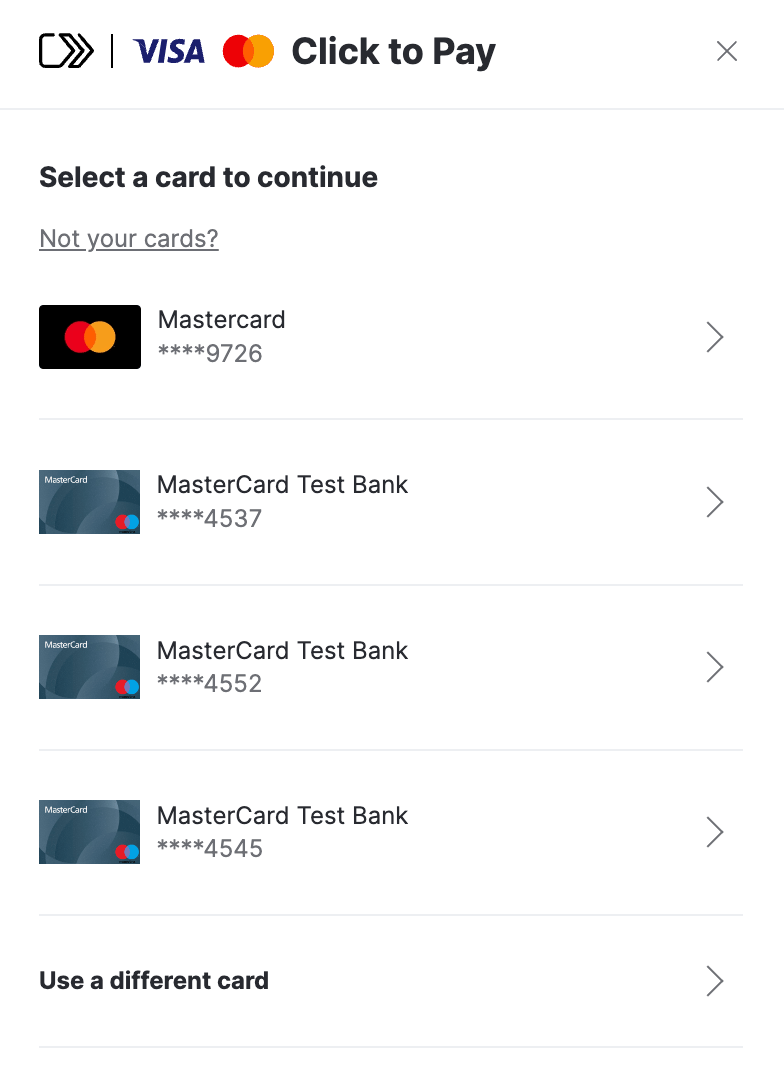 *Networks available in Yuno*: [MasterCard](https://www.mastercard.us/en-us/personal/ways-to-pay/click-to-pay.html)
## Key features and benefits
* **Ease of Use**: It enables consumers to make online purchases with a single click, eliminating the need to enter credit card details for each purchase manually.
* **Enhanced Security**: Utilizes modern authentication standards to minimize fraud risk. This may include methods such as two-factor authentication or payment tokens.
* **Consistent Across Various Sites**: Offers a similar payment experience across all websites that support this technology, meaning consumers don’t have to learn different processes for each online store.
* **Integration with Card Brands**: Being backed by major card brands, "Click to Pay" is widely accepted and trusted.
* **Mobile and Desktop Compatibility**: Designed to work across various devices, it facilitates online shopping on both desktops and mobile devices.
This feature enhances the customer experience and aligns with modern digital payment trends, potentially increasing conversion rates and customer loyalty. By incorporating "Click to Pay," you can offer a seamless checkout experience, reducing friction and addressing security concerns in online transactions.
## Integration
To integrate and start offering Click to Pay to your customers, follow these 4 simple steps:
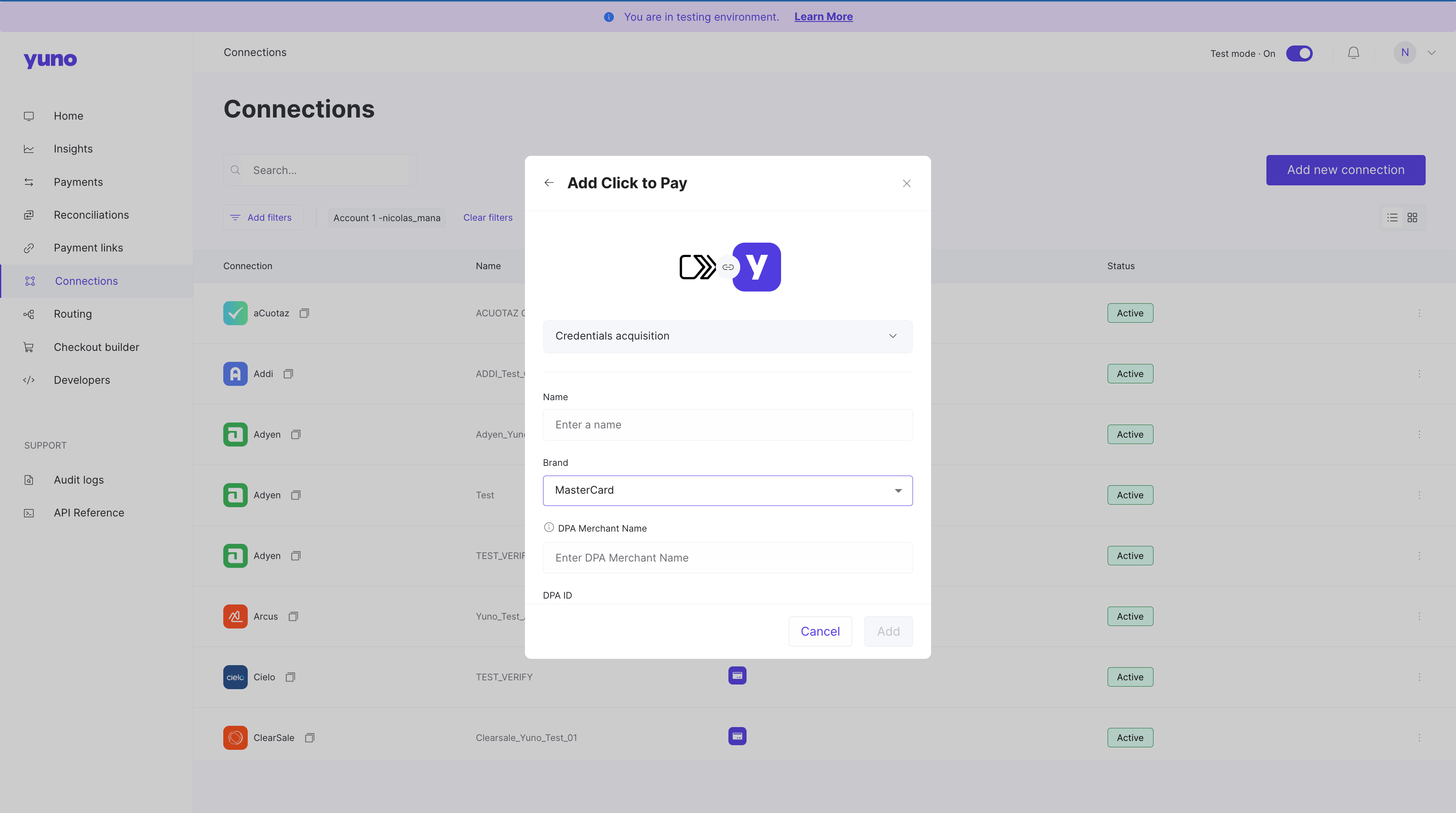
1. Create a [connection](https://dashboard.y.uno/connections) in the Yuno dashboard using your Click to Pay credentials.
*Networks available in Yuno*: [MasterCard](https://www.mastercard.us/en-us/personal/ways-to-pay/click-to-pay.html)
## Key features and benefits
* **Ease of Use**: It enables consumers to make online purchases with a single click, eliminating the need to enter credit card details for each purchase manually.
* **Enhanced Security**: Utilizes modern authentication standards to minimize fraud risk. This may include methods such as two-factor authentication or payment tokens.
* **Consistent Across Various Sites**: Offers a similar payment experience across all websites that support this technology, meaning consumers don’t have to learn different processes for each online store.
* **Integration with Card Brands**: Being backed by major card brands, "Click to Pay" is widely accepted and trusted.
* **Mobile and Desktop Compatibility**: Designed to work across various devices, it facilitates online shopping on both desktops and mobile devices.
This feature enhances the customer experience and aligns with modern digital payment trends, potentially increasing conversion rates and customer loyalty. By incorporating "Click to Pay," you can offer a seamless checkout experience, reducing friction and addressing security concerns in online transactions.
## Integration
To integrate and start offering Click to Pay to your customers, follow these 4 simple steps:
1. Create a [connection](https://dashboard.y.uno/connections) in the Yuno dashboard using your Click to Pay credentials.
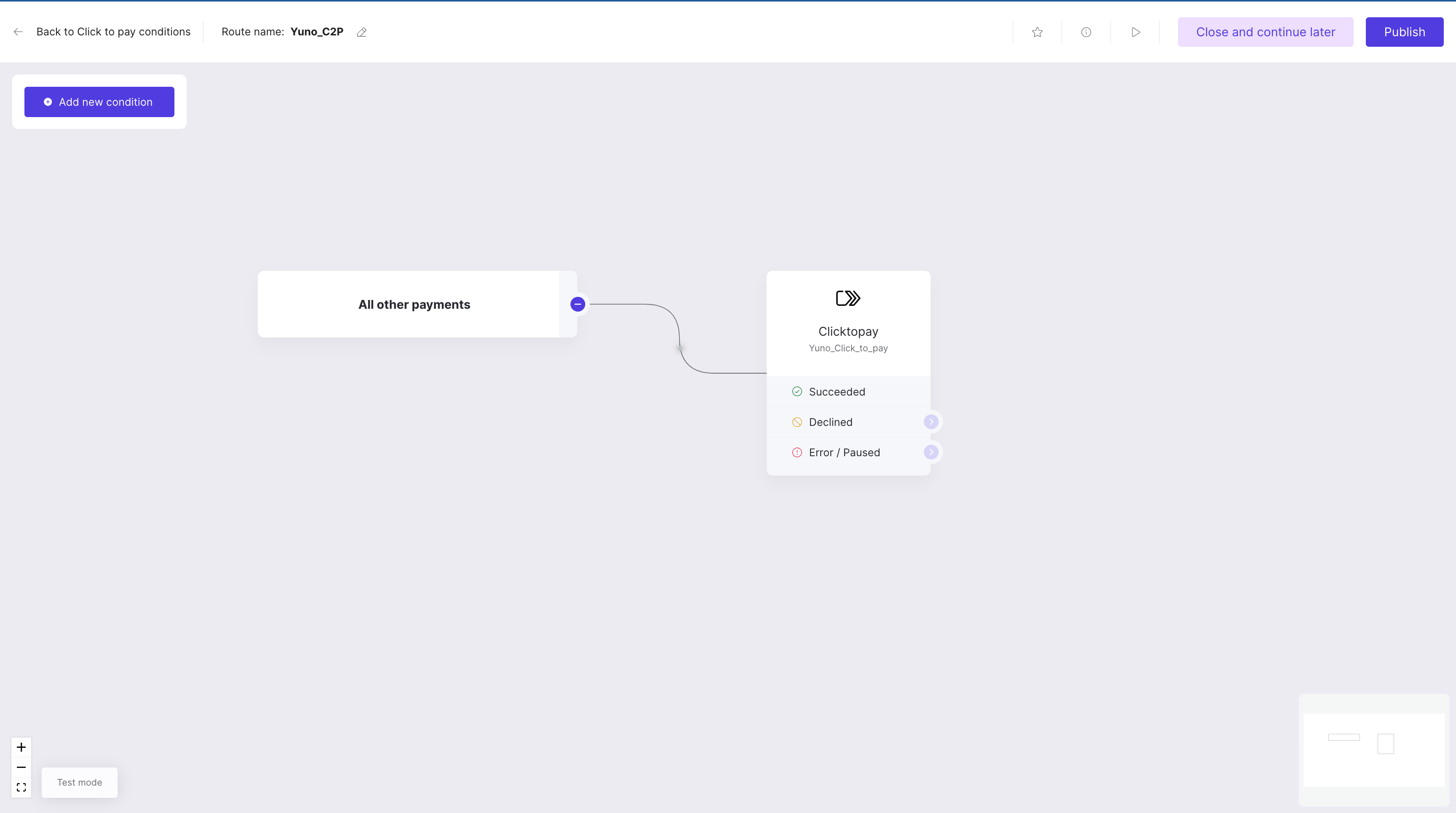
 2. Define the payment method route in the [Routing](https://dashboard.y.uno/routing) section in order to be able to enable it in the Checkout Builder.
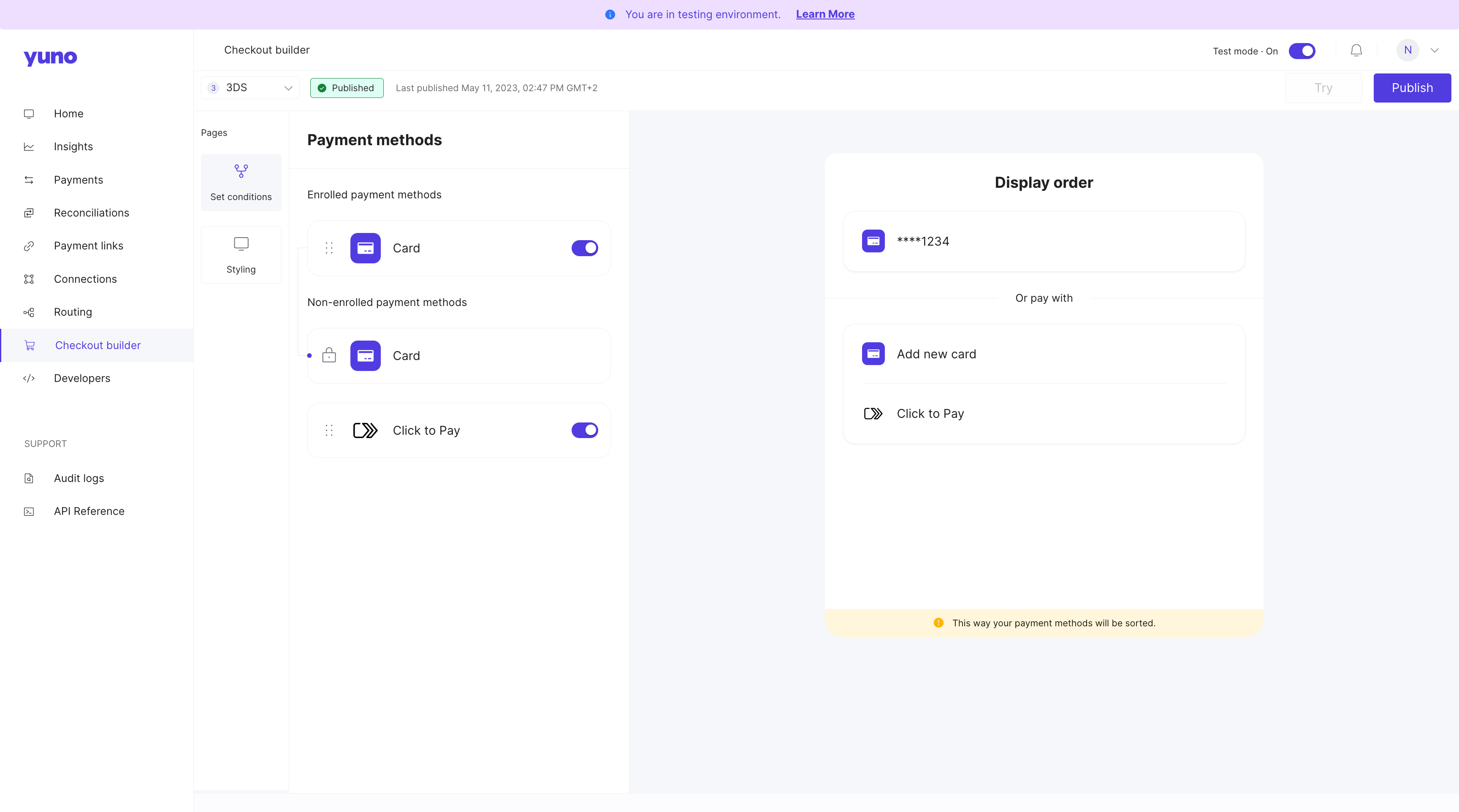
 3. Enable Click to Pay in the [Checkout builder](https://dashboard.y.uno/checkout-builder).
 4. Define the Card route: Taking in consideration that Click to Pay is a wallet that stores credit card information, the **route** where you will need to define the providers for each scenario is the same as the **'Card' payment method**.
## VTEX integration
For VTEX merchants using Click to Pay, the integration provides automatic customer creation and data mapping to streamline the checkout experience.
**Automatic customer creation:**
When customers choose Click to Pay on VTEX stores:
* The VTEX customer is automatically created in Yuno during payment initialization (if not already existing)
* All customer data from the VTEX profile is automatically mapped to Yuno and included in the checkout session
* Customer information (CVV, email, address) is pre-filled in the SDK, eliminating redundant data entry
* The checkout flow matches the streamlined experience available for non-VTEX merchants
This feature requires the **Create customer** field to be set to **Yes** in the VTEX provider configuration. For more details, see [Configure Yuno as Provider](/docs/configure-yuno-as-provider) in the VTEX integration documentation.
## SDK integration (Click to Pay Passkey)
**Important**
Standard Click to Pay card flows use the existing SDK callbacks, but Passkey users must include a `callback_url` that matches the app’s deeplink scheme so the shopper returns to the app after authentication (on Android this must match the scheme configured in `AndroidManifest.xml`). For example:
```json theme={null}
{
"callback_url": "myapp://pay/ctp"
}
```
For Passkey transactions, the one-time token (OTT) never reaches the usual SDK callbacks (including `callbackOTT` on Android). Always read it from the deeplink parameters before continuing the flow.
The Yuno iOS and Android SDKs currently support Click to Pay via the Passkey flow. In both cases, the one-time token (OTT) is returned through a deeplink URL instead of the standard SDK callbacks, so your app must parse the deeplink parameters before continuing the payment.
### iOS Passkey flow
The Yuno iOS SDK supports Click to Pay with Passkey. The flow differs from standard card payments because the SDK returns the result by deeplink instead of via the usual delegate callbacks.
### Handle the one-time token (OTT) and deeplink
When a shopper completes the Click to Pay Passkey flow, the SDK sends the result through the deeplink URL instead of the `yunoCreatePayment(with token: String)` delegate method.
#### 1. Close the external browser
When your app receives the deeplink callback, immediately call `Yuno.receiveDeeplink` to let the SDK dismiss the external browser that was used for Passkey authentication.
```swift theme={null}
func application(_ app: UIApplication,
open url: URL,
options: [UIApplication.OpenURLOptionsKey : Any] = [:]) -> Bool {
Yuno.receiveDeeplink(url: url)
// Parse the URL to extract parameters
return true
}
```
#### 2. Process the deeplink URL
The deeplink query string includes the information you need to continue:
* `has_error`: Indicates an error occurred during the transaction. Handle this scenario in your app.
* `one_time_token`: Present when the transaction succeeds. Use it to create the payment.
#### 3. Create the payment
If the deeplink contains a `one_time_token`:
1. Extract the `one_time_token`.
2. Use it to create the payment with the [Create Payment endpoint](/reference/create-payment).
3. After creating the payment, call `continuePayment` in the SDK to finalize the flow.
**Important**
The OTT never reaches `yunoCreatePayment(with token: String)` for Click to Pay Passkey. Always read the token from the deeplink URL.
### Android Passkey flow
For Android, include a `callback_url` that matches your app’s deeplink scheme when creating the checkout session, add the corresponding `intent-filter` in `AndroidManifest.xml`, and handle the deeplink in both `onCreate` and `onNewIntent`. When the deeplink arrives:
1. Check `has_error` to manage cancellations or failures.
2. Extract `one_time_token` (and the optional `checkout_session`) from the URI.
3. Send the OTT to your backend to call the [Create Payment endpoint](/reference/create-payment), then invoke `continuePayment` in the SDK to resume the flow.
See the full SDK guides for detailed samples: [Android Full Checkout](/docs/sdks/full-checkout/android-payments) and [iOS Full Checkout](/docs/sdks/full-checkout/ios-payments).
4. Define the Card route: Taking in consideration that Click to Pay is a wallet that stores credit card information, the **route** where you will need to define the providers for each scenario is the same as the **'Card' payment method**.
## VTEX integration
For VTEX merchants using Click to Pay, the integration provides automatic customer creation and data mapping to streamline the checkout experience.
**Automatic customer creation:**
When customers choose Click to Pay on VTEX stores:
* The VTEX customer is automatically created in Yuno during payment initialization (if not already existing)
* All customer data from the VTEX profile is automatically mapped to Yuno and included in the checkout session
* Customer information (CVV, email, address) is pre-filled in the SDK, eliminating redundant data entry
* The checkout flow matches the streamlined experience available for non-VTEX merchants
This feature requires the **Create customer** field to be set to **Yes** in the VTEX provider configuration. For more details, see [Configure Yuno as Provider](/docs/configure-yuno-as-provider) in the VTEX integration documentation.
## SDK integration (Click to Pay Passkey)
**Important**
Standard Click to Pay card flows use the existing SDK callbacks, but Passkey users must include a `callback_url` that matches the app’s deeplink scheme so the shopper returns to the app after authentication (on Android this must match the scheme configured in `AndroidManifest.xml`). For example:
```json theme={null}
{
"callback_url": "myapp://pay/ctp"
}
```
For Passkey transactions, the one-time token (OTT) never reaches the usual SDK callbacks (including `callbackOTT` on Android). Always read it from the deeplink parameters before continuing the flow.
The Yuno iOS and Android SDKs currently support Click to Pay via the Passkey flow. In both cases, the one-time token (OTT) is returned through a deeplink URL instead of the standard SDK callbacks, so your app must parse the deeplink parameters before continuing the payment.
### iOS Passkey flow
The Yuno iOS SDK supports Click to Pay with Passkey. The flow differs from standard card payments because the SDK returns the result by deeplink instead of via the usual delegate callbacks.
### Handle the one-time token (OTT) and deeplink
When a shopper completes the Click to Pay Passkey flow, the SDK sends the result through the deeplink URL instead of the `yunoCreatePayment(with token: String)` delegate method.
#### 1. Close the external browser
When your app receives the deeplink callback, immediately call `Yuno.receiveDeeplink` to let the SDK dismiss the external browser that was used for Passkey authentication.
```swift theme={null}
func application(_ app: UIApplication,
open url: URL,
options: [UIApplication.OpenURLOptionsKey : Any] = [:]) -> Bool {
Yuno.receiveDeeplink(url: url)
// Parse the URL to extract parameters
return true
}
```
#### 2. Process the deeplink URL
The deeplink query string includes the information you need to continue:
* `has_error`: Indicates an error occurred during the transaction. Handle this scenario in your app.
* `one_time_token`: Present when the transaction succeeds. Use it to create the payment.
#### 3. Create the payment
If the deeplink contains a `one_time_token`:
1. Extract the `one_time_token`.
2. Use it to create the payment with the [Create Payment endpoint](/reference/create-payment).
3. After creating the payment, call `continuePayment` in the SDK to finalize the flow.
**Important**
The OTT never reaches `yunoCreatePayment(with token: String)` for Click to Pay Passkey. Always read the token from the deeplink URL.
### Android Passkey flow
For Android, include a `callback_url` that matches your app’s deeplink scheme when creating the checkout session, add the corresponding `intent-filter` in `AndroidManifest.xml`, and handle the deeplink in both `onCreate` and `onNewIntent`. When the deeplink arrives:
1. Check `has_error` to manage cancellations or failures.
2. Extract `one_time_token` (and the optional `checkout_session`) from the URI.
3. Send the OTT to your backend to call the [Create Payment endpoint](/reference/create-payment), then invoke `continuePayment` in the SDK to resume the flow.
See the full SDK guides for detailed samples: [Android Full Checkout](/docs/sdks/full-checkout/android-payments) and [iOS Full Checkout](/docs/sdks/full-checkout/ios-payments).